Flip and Mirror an Image Without Breaking the Layout
Mirroring sounds like the simplest command in any editor. In this one it has a specific scope that surprises people: Image → Flip flips the active layer, not the canvas. If you have three layers — photo, text, watermark — flipping once only turns one of them around.
That is a feature once you know it. You can mirror a photo and leave the caption readable, which is exactly what you want for a selfie with a brand logo, or for a product shot where the label must stay legible.
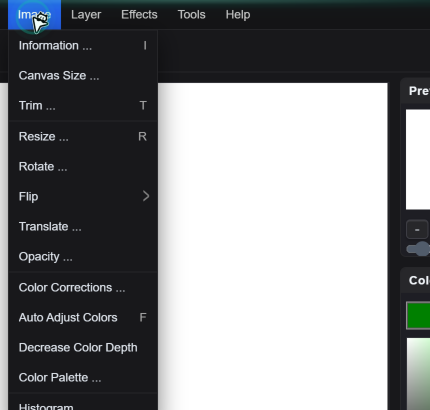
Two Directions, One Rule
| Command | Effect | Typical use |
|---|---|---|
| Image → Flip → Horizontal | Mirror left-to-right | Selfie correction, matching a layout, making a subject face the copy |
| Image → Flip → Vertical | Turn upside down | Fixing a scanned negative, matching a reflected ceiling, design tricks |
Both operate in place: the layer keeps its position and size, and only the pixel arrangement changes. Nothing is cropped, nothing is padded.
One hard requirement from the code path: the layer must be a raster image. A text layer, a shape layer or a rotated object has to be converted first — Layer → Convert to Raster — or the command reports that the layer must contain an image. Converting is one-way; the text stops being editable.
Mirroring a Selfie Properly
Before flipping, look for anything that reads as text: a shirt slogan, a street sign, a mug, a name badge. After a mirror, all of it is backwards. If those elements matter, flip now and accept it, or plan to cover them.
Select the photo layer, then Image → Flip → Horizontal. Faces usually look more familiar mirrored, because that is the version you see in a mirror every morning. The camera shows the version other people see.
If a sign or logo now reads in reverse, add a text layer over it instead of living with it — a small solid rectangle plus a text layer at the same spot looks more deliberate than mirrored letters. Never mirror the whole thing twice and claim it is fixed; you are back where you started.
What Flip Does Not Do
- It does not flip the canvas. The document dimensions stay the same, and other layers stay as they were.
- It does not rotate. 90° turns live under Image → Rotate, which has a Right angle dropdown with 0, 90, 180 and 270 plus a 0–360 slider.
- It does not resample. A mirror is a lossless pixel rearrangement inside the layer, so quality does not drop — unlike a Resize, which rebuilds pixels.
- It does not flip selections or guides. If you flipped expecting a selection to follow, redraw the selection.
Practical Uses Beyond Selfies
- Two-up layouts. Duplicate a cut-out, flip one copy horizontally, and you have a symmetric pair — good for before/after, product bundles, or decorative borders.
- Directional flow. A subject facing right on the left half of a banner should face inward. Flip it rather than crop and lose the composition.
- Scanned negatives. Film scanned from the wrong side comes out mirrored. Flip horizontally once, then fix the colour cast with Image → Color Corrections.
- Reflections. Duplicate the subject, flip vertically, place it below, then fade it with layer opacity — a fake water reflection for product shots.
The Text Question
If you need the whole composition mirrored and there is text in it, the order that avoids a mess is: flatten first (Layer → Flatten Image) so text becomes pixels, flip once, then reconsider whether the result is acceptable. Mirrored text is almost always worse than a slightly different crop, so most of the time the right answer is to flip only the photographic layer and retype the text.
Quick Answers
Why did only part of my image flip?
Flip acts on the active layer. If the picture is built from several layers — photo, text, watermark, adjustment shapes — only the selected one is mirrored. Select each layer you want flipped, or flatten first (Layer → Flatten Image) if you need the whole composition mirrored as one piece.
Does flipping reduce image quality?
No. A horizontal or vertical flip is a pixel rearrangement inside the layer, with no resampling, so nothing is lost. Resizing is the operation that rebuilds pixels and softens detail.
How do I mirror a canvas that contains text without mirroring the text?
Mirror only the photographic layer and keep text on its own layer above it. If the layout itself must be mirrored — a right-to-left language version, for example — flatten, flip, then retype the text from scratch rather than trying to un-mirror the letters.
Related Tutorials
Mirror a selfie, then put a text layer on top and confirm the text stays readable while the photo is flipped.